TL;DR: Time is the most limited resource, and any tools that save more of that, may be worth a shot. This guide lines up the best AI tools for photographers around real workflows. Pick one for post‑production and one for marketing, run a one‑job test, and keep only what saves over an hour. See exactly where each tool fits with Lightroom or Capture One and what it costs to try out this week.
If your first priority is to streamline and ease post-production workflow, Aftershoot is the workflow triage you may want to try first. Jump straight in!
Quick Picks: Post‑production
| Category | Top Pick | Why it matters | Use for | Trial info |
|---|---|---|---|---|
| Culling + Batch Editing | Aftershoot Selects + Edits | Learns your style, speeds culling and color in one place | Wedding, family, events, volume | Free 30‑day trial |
| Retouching | Aftershoot Retouch | Batch skin cleanup, flyaway control, consistency across sets | Weddings, portraits, seniors | Early Release promo, free to try |
| One‑click enhance | Topaz Photo AI | Fixes noise, blur, detail with minimal sliders | Low light, wildlife, event rescue | Paid, trial available |
| Upscale for print | Topaz Gigapixel | Clean large prints from smaller files | Albums, wall art, commercial | Paid, trial available |
| Lightroom‑native AI | Adobe Lightroom Classic | AI masking, Lens Blur, noise reduction inside your catalog | Everyone who lives in LR | CC plan free trial |
| Generative edits | Photoshop Generative Fill | Add, remove, extend frames with prompts | Composites, product, marketing | CC plan free trial |
| Alternative editor | Luminar Neo | Simple AI tools, easy presets, portrait helpers | Solo shooters, hobby to pro | Paid, trial available |
| Plugin retouch suite | Retouch4me | Natural skin, dodge and burn, eyes, fabric tools | High‑volume retouch | Paid, trial available |
| Consistency at scale | Imagen | Profile‑based edits that match a style library | Studios, outsourced look | Paid, trial available |
| LR plugin automation | Impossible Things | Style profiles, adaptive looks, LR‑first workflow | Wedding, portrait pros | Paid, trial available |
| Library search | PhotoPrism | Private, smart search, face recognition | Archive management | Open source |
Quick Picks: Marketing
| Category | Top Pick | Why it matters | Use for | Trial info |
| Business and copy | ChatGPT or Jasper | Faster captions, emails, proposals when you feed context | Marketing, blogging | Free tiers available |
| Design and resize | Canva | Quick social crops, BG removals, brand kits | Social content, guides | Free, Pro trial |
| Ad creative at scale | AdCreative.ai | Spin up multiple ad variations fast | Mini sessions, promos | Paid, trial available |
| Stock & licensing | EyeEm | AI tagging + marketplace exposure | Licensing, monetization | Paid, marketplace cut |
| Productivity & notes | Mem | AI‑organized notes/tasks that stay searchable | Shoot planning, workflows | Paid, trial available |
If you’re just starting to explore AI tools, pick one tool for post‑production and one for marketing.
How to use this guide in 3 minutes
- Scan Quick Picks. Star one post‑production tool and one marketing tool.
- Grab a recent job. Time your current process.
- Swap in the starred tools and compare minutes. Keep anything that saves an hour or more.
This guide is built for working photographers. We organize tools by the job they do, show the handoff to Lightroom or Capture One, and highlight minutes saved and cost per job.
How to choose AI tools for photography
Bottom line: Start with the slowest step in your week.
What to weigh:
- Volume fit. Match batch size and deadlines to what the tool does well.
- Style control. The tool should learn and repeat the look clients expect.
- Handoff friction. Keep round‑trips to Lightroom, Capture One, or Photoshop simple.
- Proofing and delivery. Confirm it plays well with your gallery, albums, and prints.
- Time saved. Track edits per hour, retouch minutes per portrait, and cull time per job.
- Cost per job. Use a quick check: (monthly price × 12 ÷ jobs per year), or per‑credit math for pay‑as‑you‑go.
Quick test plan: Run one recent job through your current workflow. Log the minutes for each step. Run the same job with one new tool. Keep it if it saves an hour or more.
When AI is the wrong fit
- Your look changes dramatically from set to set.
- You deliver a small set of hero images where hand retouch is the product.
- A tool adds exports or duplicate steps without saving minutes elsewhere.
13 AI tools that potentially save hours of work for Photographers
Let’s begin!
AI-powered photography post‑production tools
1. Culling and batch editing
Aftershoot Selects + Edits
When cards land on your desk, you want one place to sort the story and set the look. Aftershoot takes over culling to group duplicates, flags soft frames, and lets you set a target image count (cull-to-target) so the gallery stays tight. It analyzes and rates your photos based on factors like sharpness, exposure, faces/eyes, and duplicates, allowing you to quickly and efficiently, shaving hours off post-production.
We strongly recommend you watch this video on AI culling with Aftershoot Selects, where Justin Benson, the co-founder of Aftershoot and a pro photographer with years on his sleeve, talks culling and showcases a power-user workflow for AI-powered photo culling. This will set you up for success.
You can review your cull with three powerful manual review modes, and when you’re happy with the set, use Aftershoot Edits to apply your color and tone with a profile trained on finished work.
Aftershoot’s Marketplace offers AI profiles curated by pro photographers, so you can consistently apply edits across the gallery. Alternatively, you can build your own AI profile by uploading 2500+ images edited in your style, so Aftershoot understands your unique style and creates a profile for you accordingly. Editing your next gallery with batch processing with be done with a single-click, so your first pass is done in minutes, with zero manual effort.
It hands off cleanly to Lightroom or your preferred editing software with metadata intact for final touches.
Bonus: You don’t need an internet connection to cull or edit with Aftershoot. Use it anywhere, anytime.
First steps: Train a profile on two finished galleries, set Cull‑to‑Target to your usual delivery number, review ten pairs in Survey Mode, then run the batch edits and spot‑check.
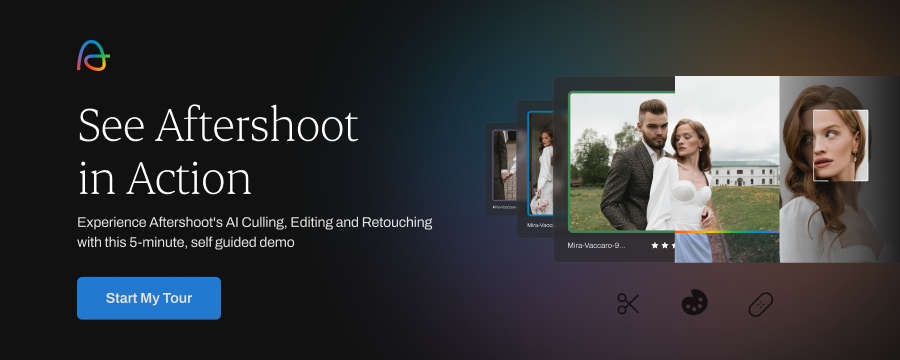
If you’d like to see it in action and get a feel for how the tool works to save time and work, this 3-minute self-guided, interactive demo of the Aftershoot platform is for you:
2. Retouching (people & groups)
Aftershoot Retouch
Fast, natural cleanup across people photography—weddings, families, teams, newborns, headshots. Keeps skin texture intact while reducing blemishes and redness, taming flyaways, softening glare/shine, brightening eyes and teeth, balancing facial light, and removing small distractions across a full set. Launch from Lightroom via Edit In → Aftershoot, or run the set inside Aftershoot after your batch edits.
What stands out
- Consistent results on large sets—apply once, stay uniform across angles and lighting.
- Correct Changes tool to bring detail back if a slider goes too far.
- Face Shine slider for highlight control, plus Body Blemish Removal for non‑face cleanup.
- Supports TIFF alongside RAW/JPEG for flexible handoffs.
Try this to test how well it works for you:
- Test on 8–10 images from the same scene, then paste settings to the rest.
- Keep skin smoothing conservative; let expressions and texture stay real.
Coming soon!
Cloth de‑wrinkle, body tint correction, double‑chin reduction, and background replacement—useful for groups and mixed lighting.
Time math
Cut ~90 minutes in culling, ~60 minutes in edits, and ~60 minutes in retouch. That’s a full Saturday saved!
3. Fixing noise, blur, and detail
Topaz Labs
Topaz Labs has made the list for its suite of image enhancement tools. Topaz Labs has been around for quite some time and has garnered acclaim thanks to their dedicated plugins for Photoshop and Lightroom.
Now they also offer some of their most popular products, such as DeNoise AI, Sharpen AI, and Gigapixel AI as standalone products with very specialized applications.
If your images are blurry, noisy, or just of low quality, Topaz Labs offers AI tools that can fix them.
Its AI editing software eliminates snow-speckled noise, can upscale images without loss, and will breathe new life into blurred images you thought were goners.
The DeNoise AI is intelligent enough to distinguish between actual noise and the details of your photographs, which means you won’t lose sharpness when it recovers details.
Gigapixel AI is not only handy for enlarging photos up to 600% without losing quality, but it’s also useful for zooming in and cropping details from an original image and enhancing it for print.
Bonus: Topaz Labs tools can be installed as standalone programs, or you can integrate them into your Lightroom and Photoshop workflows.
Quick pass: duplicate your selects, apply moderate denoise and sharpen, compare at 100% on faces and at print size for album spreads. Upscale a 12 MP favorite to 24–36 MP, soft‑proof for your paper, and print a test at the largest size you sell.
Also in the mix: DxO PureRAW or PhotoLab for RAW‑first denoise; Lightroom’s AI Denoise if you prefer to stay native.
Read also: A Complete Guide to Wedding Retouching
4. Lightroom‑native AI
Adobe Lightroom Classic
Stay inside your catalog and move faster. AI masking finds subjects, sky, background, or clothing. Lens Blur simulates depth of field after capture. Denoise cleans RAW files while preserving detail. Ideal when speed and consistency matter.
Try this: create adaptive presets for common conditions—backlit ceremonies, flat prep rooms, blue‑hour portraits—and apply them on import.
5. Generative edits and composites
Photoshop Generative Fill
Generative Fill exceeds the capabilities of existing tools like Content-Aware Fill, giving you more creative freedom and flexibility.
It matches perspective, lighting, and image style exceptionally well, making this a must-have AI tool for photographers.
Preset idea: extend a tight group shot for album layouts, clean power lines from an outdoor portrait, or rebuild a torn backdrop edge. Keep client reality intact.
6. Alternative editor with fast wins
Luminar Neo
A friendly editor with useful portrait tools, sky replacement, and quick looks that sell well to lifestyle clients. Good when you want fast wins without learning a complex app.
Quick win: run a small family set through Neo for quick polish, then compare client favorites to your Lightroom edits.
7. Style libraries and studio scale
Imagen + Impossible Things
If multiple shooters touch the same brand, consistency is the job. Imagen builds style profiles that match a library of finished edits. Impossible Things keeps the whole process inside Lightroom with adaptive adjustments.
Studio test: build one studio profile from last season’s keepers, then test on a multi‑shooter wedding to see if tones and contrast hold together.
8. Library search and organization
Some of us love it, but most of us hate it – organizing images is one of those necessary evils that help you in the long run but isn’t always fun.
Luckily, image organization is yet another area where AI can save the day and help you quickly find the photo you’re looking for without having to manually sift through endless folders and files.
PhotoPrism
When it comes to organizing and managing your digital photo collections, PhotoPrism is one of the top AI tools for photographers out there.
It helps streamline your photo management and quickly syncs your photos to preferred cloud storage services like Dropbox, Google Drive, and Amazon S3.
The AI software analyzes every photo to automatically sort, tag, and categorize your images based on criteria like location, date, and content.
It can identify objects, people, and other details to make smart organizational decisions.
It also makes it easy to find photos in a collection with its advanced search capabilities.
AI tools that make marketing easier for photographers
Marketing wins come from publishing consistently. These tools help you draft copy, keep brand styling tight, and spin ad variants without opening five apps.
Also, we put together an ebook to help you streamline your marketing workflows and book more clients, and its free!

Anyway, tasks like blogging, content creation, image sharing, and social media management can all be made easier with a little help from AI, freeing you up for more time to shoot and get creative.
9. Photo sharing platform
EyeEm
EyeEm is a platform where you can buy premium, royalty-free stock images and upload your photographs to sell your work.
This photo-sharing platform uses the power of AI to automatically tag and categorize your photos.
It makes it easy for you to license your work and for brands that would be most interested in your particular style to discover your work.
The app also makes it easy to connect to a community of photographers and share your work on social media platforms like Facebook, Twitter, Flickr, Tumblr, and Foursquare.
Honcho
Honcho is a photo-sharing platform built for real-time delivery and client engagement.
It uses AI-powered face recognition to let guests or clients find their photos instantly by scanning a QR code or uploading a selfie.
The app also allows photographers to upload images straight from camera to cloud, run live slideshows at events, and even enable on-site printing for instant keepsakes.
With custom galleries and branding options, Honcho helps photographers turn photo delivery into a seamless client experience.
10. Marketing copy and ideation
ChatGPT or Jasper
You’re a photographer – a visual storyteller – so there’s no shame in using an AI tool to help you when it comes to copywriting if that isn’t your strong suit.
Draft emails, blog outlines, captions, and proposals quickly—when you feed them your voice. Paste a short style sheet (tone, audience, banned phrases) and product pages before you ask for copy.
Jasper AI is an impressive AI writing tool that can write content-aware copy for your social media captions, website, or emails. It’s exceptional at short-form copy such as ad taglines, SEO headings, and social media captions but is not as highly revered for long-form content such as blog articles.
ChatGPT needs no introduction, and you’re probably already using it. But if you’re not quite happy with its outputs for marketing tasks, this guide from Ahrefs on using ChatGPT for SEO content might help you troubleshoot.
11. Quick designs for marketing assets
Canva
A convenient online design platform that has become popular with creatives of all shades and colors.
Recently they’ve added certain generative AI features that take the ease of creating your social media, blog, site, printed, and any other graphics up a notch, so you really should look into this one.
Some of the AI-powered features that we’re most impressed with are the remove background and magic resize tools.
Resize a set for each platform, remove backgrounds cleanly, and keep brand colors, type, and logos consistent with Brand Kits. Great for client guides and simple ads you need today.
DocHipo
DocHipo is an easy-to-use, AI-powered design tool trusted by creators and photographers to craft stunning visual content across multiple formats.
Photographers can easily turn their images into professional-quality branding, marketing, or advertising materials such as logos, business cards, social media posts, carousels, posters, ads, and more within minutes.
DocHipo also allows one to enhance their photos effortlessly with powerful editing options. Apply filters, adjust tones, add effects, crop into custom shapes, or place them in stylish frames from a wide range of categories.
Its one-click AI Background Remover instantly eliminates unwanted backgrounds from product photos, portraits, and more, giving your images a clean, professional finish. You can also use the built-in AI Writer to generate engaging captions that perfectly complement your visuals.
With Smart Resize and Brand Kit, DocHipo ensures your designs stay visually consistent and on-brand across every platform.
12. Ads automation
Adcreative.ai
This AI tool for photographers takes the spotlight when it comes to automating content creation for ads.
It generates conversion-focused ad and social media post creatives in seconds!
All you have to do is upload your photography business logo, and select your brand colors, and the program will generate content options in your choice of size for whichever platform or purpose you want to use it for.
If you want to launch an ad campaign across multiple platforms, Adcreative.ai will create all the dimensions you need in one click.
13. Bonus: A must-have productivity tool
To-do lists, inspiration memos, reminders – you name it. Writing things down (or typing for the most part) is the best way to remember important things and stay on top of them.
There are countless note and to-do list apps out there, but we’ve found one that has impressed us with its AI organizational capabilities.
Mem
Mem is a must-have tool for photographers who need a little help staying on top of things.
It’s the world’s first AI knowledge assistant that is completely personalized to you.
Let’s face it, most note-taking apps end up being archives of old thoughts and to-do lists that gather digital dust while we keep creating new memos and calendar entries. Not Mem!
Mem is a self-organizing database that connects your email, calendar, and contacts to your notes and task lists. It batches all the information and keeps it organized so you never lose track of meetings, insights, or conversations.
It helps that the app has a user-friendly and streamlined interface too! It looks minimalist but is packed with productivity-boosting features.
Mem can connect to thousands of apps through Zapier. You can send notes to your Mem via WhatsApp or SMS, which is especially handy when you’re using those platforms to organize shoots or talk to clients.
Read also 16 Best Online Proofing Galleries for Photographers
Other business functions to consider
Aim to reduce admin time and tighten handoffs. Fewer apps, cleaner steps.
- CRM and studio management: Look for smart email templates, proposal automation, and lead routing that cut response time.
- Scheduling and payments: Auto‑reminders, deposit requests, and reschedule links that sync with your calendar.
- Galleries and sales: Built‑in store automations, coupon logic, and album proofing to lift AOV (average order value) with little manual work.
- Client comms: Canned responses and AI‑assisted drafts that keep replies on brand and fast.
- Knowledge base and docs: Reusable guides for wardrobe, pricing, and delivery that personalize quickly.
Keep tools that remove a task or reduce steps. Skip the rest.
AI tools stacks by niche
Weddings
Cull and color fast in Aftershoot, retouch groups in Retouch, finish in Lightroom, rescue a few high‑ISO dance‑floor frames in Topaz Photo AI. Album design goes easier when tones match across cameras.
Portraits
Batch retouch in Aftershoot, finesse a few selects in Lightroom, fix backgrounds or clothing in Photoshop Generative Fill. Keep texture visible and focus on expression.
Product and e‑commerce
Use Generative Fill to extend backdrops and remove props, run Gigapixel for large marketplace images, and keep color true in Lightroom. Canva handles size templates for storefronts.
Sports and wildlife
Run Photo AI for denoise and sharpen on keepers, use Lightroom subject masks for fast separation, and crop with intention for story.
Family and lifestyle
Aftershoot for cull and color, Luminar Neo for quick polish, Canva for social sets and simple client guides.
Choosing the Best AI Tools For Your Photography Business
If you’re one of those “AI will take over my job!” photographers, we have good news. AI will not take your job as a photographer, but it will take some of the other tedious parts of your job off your hands and make them much easier to handle.
Why not embrace AI and use it to your advantage? We think this is the best way to unlock your creativity and enjoy photography to the max. Of course, a list of just 9 AI tools for photographers is only scratching the surface of the abundance of products available today.
It seems that new AI tools are popping up every other week or so, promising unparalleled quality and ease of use. With the increasing demand for automation and efficiency, we will likely see even more innovative AI solutions in the photography industry in the future. However, the products presented in our list have been tested over time and by many users, so we’re confident in recommending them.
We hope this upward trajectory of AI software in photography will allow many photographers to focus on the creative side of their craft, freeing up time and resources for taking great pictures.
And if you are looking for a tool to streamline your photography workflow, you know who you can rely on! Claim your FREE 30-day trial today!
FAQ
What are the best AI tools for photographers right now?
Aftershoot for culling and edits, Aftershoot Retouch for portraits, Lightroom and Photoshop for native AI, and Topaz Photo AI for rescue work cover the essentials for most pros.
Is AI replacing photographers?
Clients hire your eye and presence. AI speeds repetitive steps and supports consistent style. It works best when it follows your intent.
Which AI editor is best for wedding photographers?
Start with Aftershoot Selects and Edits, add Aftershoot Retouch for portraits, then keep Lightroom for local adjustments.
Lightroom vs Photoshop vs Aftershoot?
Use Aftershoot to batch retouch and color for consistency and speed, Lightroom for masks and local cleanup, Photoshop for complex composites and hero images.
How much time can AI save?
A wedding gallery can shift from 8 to 4–5 hours when cull, color, and retouch all run through an optimized stack.